From sign-up to a screen on the wall
Watch a café set up VizzBox from scratch: its account, a branch, a screen, its pictures and video, a playlist, a lunch-time menu, and the screen playing it all. Every step is written out below too.
6 minutes · 11 steps · captions on screen, no sound needed
Everything in the video, written out
 01
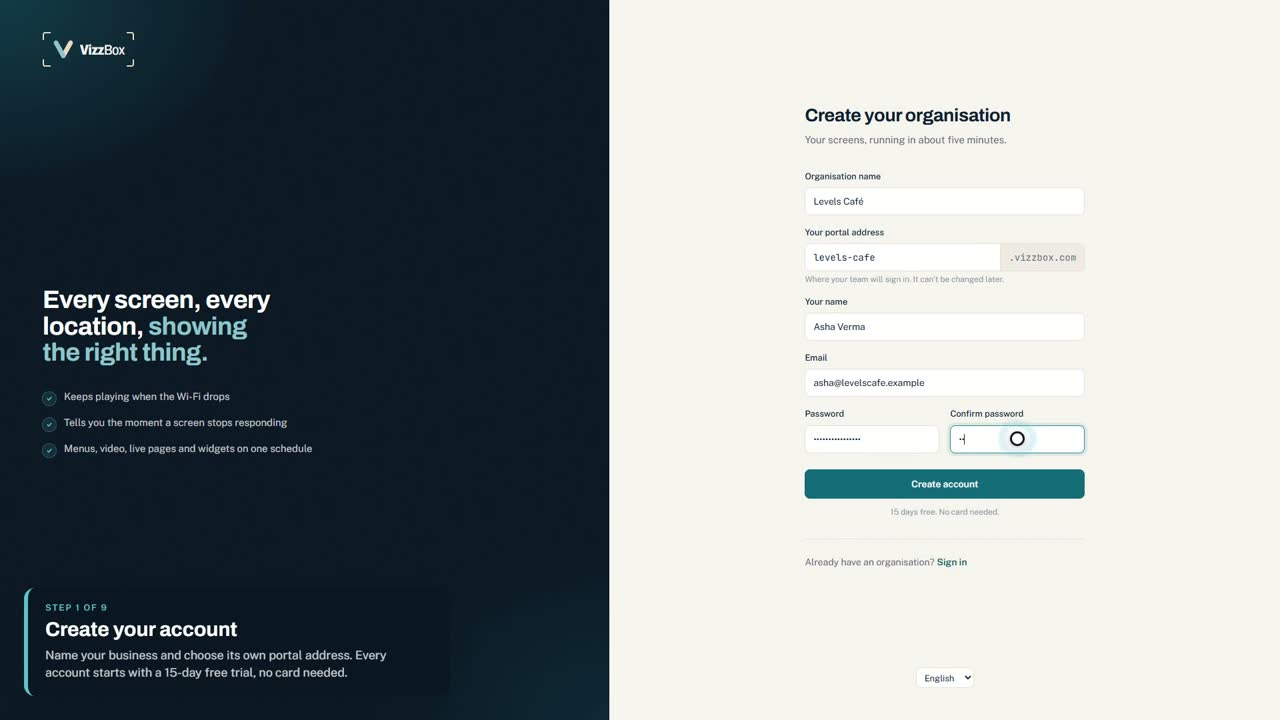
01Create your account
Go to vizzbox.com and choose Start free. Name your business and pick your portal address; it becomes your own web address, like levels-cafe.vizzbox.com. Add your name, email and a password, and you’re in.
New accounts start on a free trial with no card needed, and the dashboard opens with a checklist of the five things a screen needs.
 02
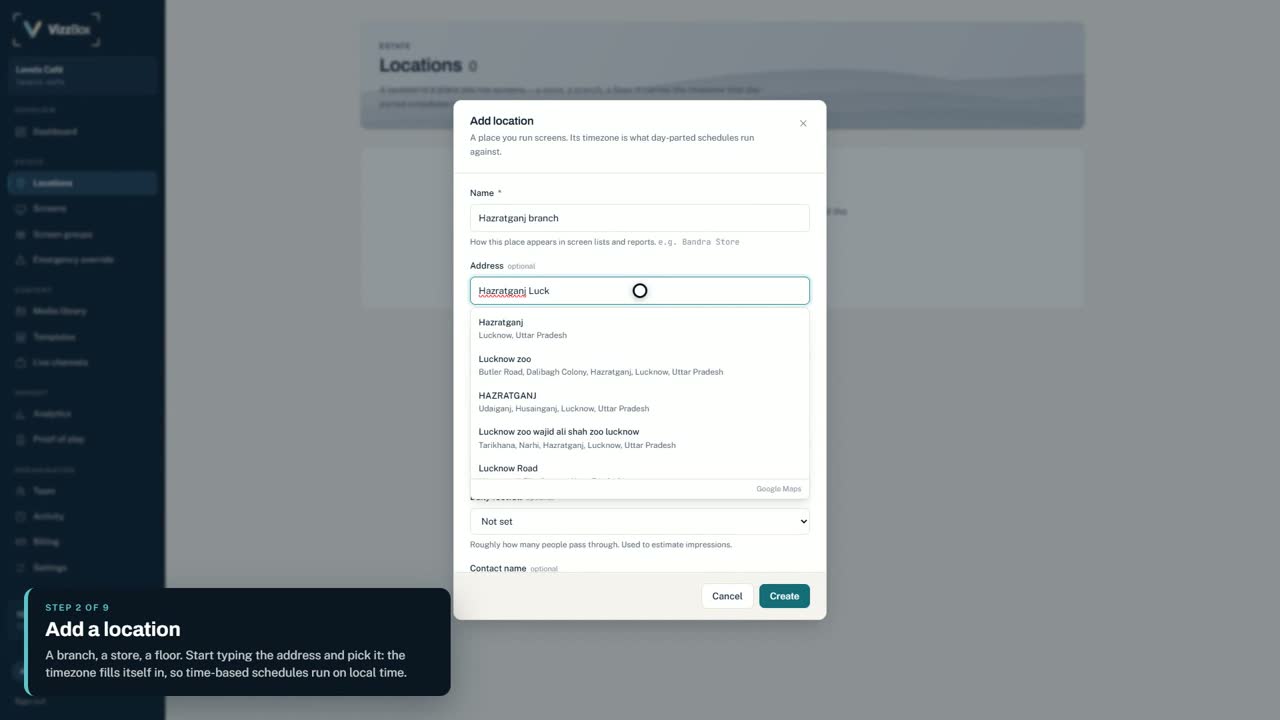
02Add a location
Open Locations and add the place the screen is: a branch, a store or a floor. Start typing the address and pick it from the suggestions; the timezone fills itself in.
Every location runs on its own clock, so a branch in another city shows its lunch menu at its own lunch time.
 03
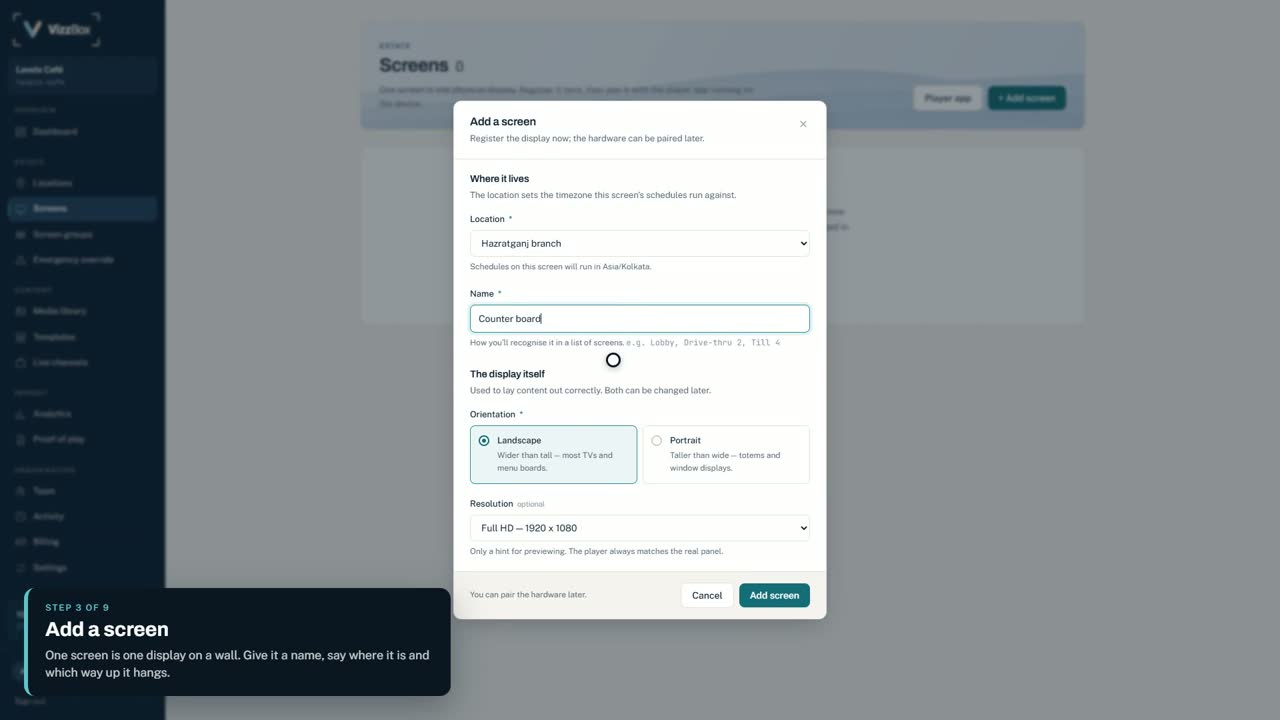
03Add a screen
Open Screens, choose Add screen, give it a name people will recognise, such as Counter board or Reception, and say which way up it hangs.
 04
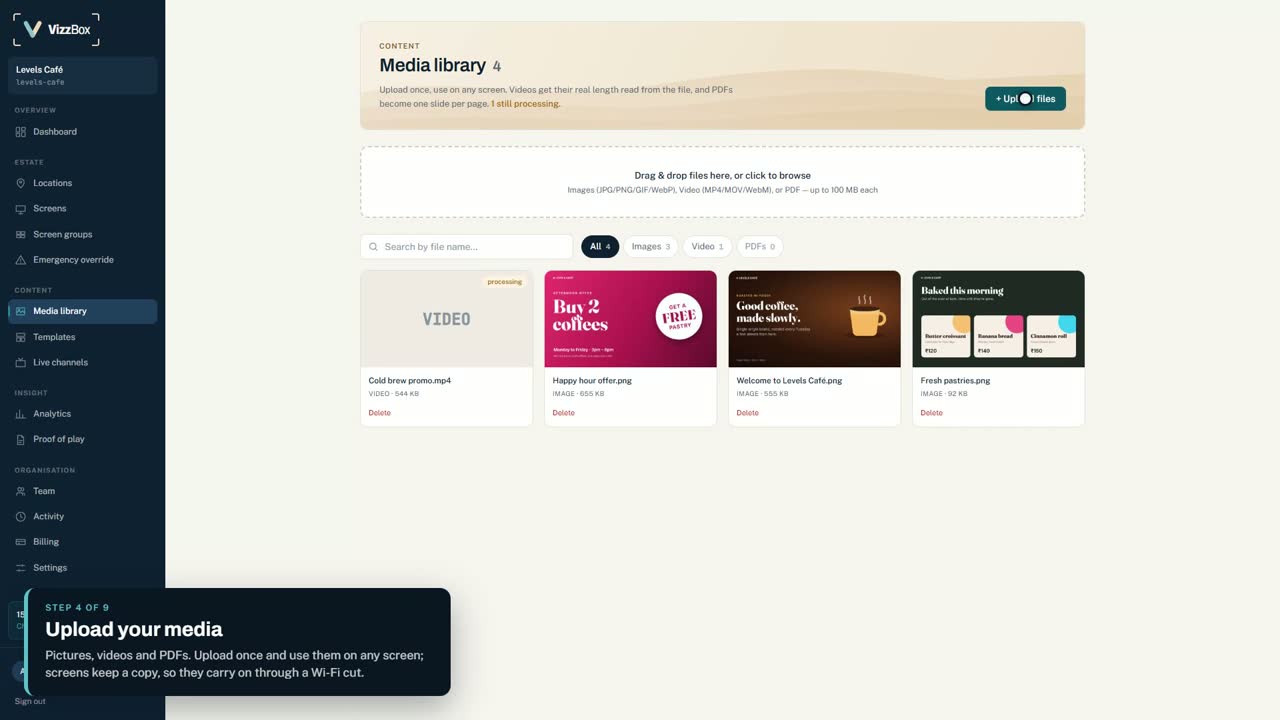
04Upload your media
Open the Media library and upload your pictures, videos and PDFs. Anything you upload can be used on any screen.
Screens keep their own copy of what they play, so they carry on through a Wi-Fi cut.
 05
05Build a template
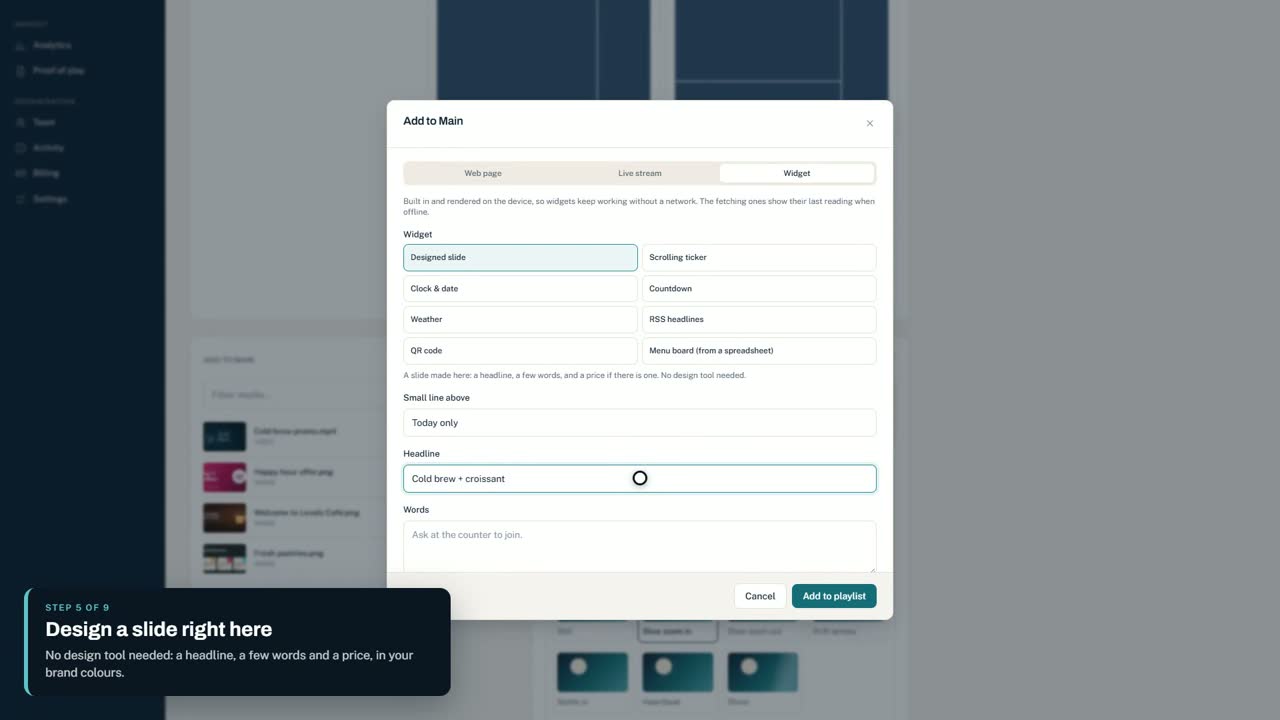
A template is what a screen plays. Open Templates, create one and pick a layout, for example full screen with a ticker along the bottom. Add pictures and video from the library, choose how slides change (fade, slide, zoom, rise, wipe or cut) and give each one a movement, such as a slow zoom. URL, stream or widget lets you design a slide right there, with a headline, a few words and a price, or add a ticker, clock, weather, QR code and more. Finish with Save template.
Anything you add can be changed later with its Edit button, and videos play to the end of the clip.
 06
06Preview it
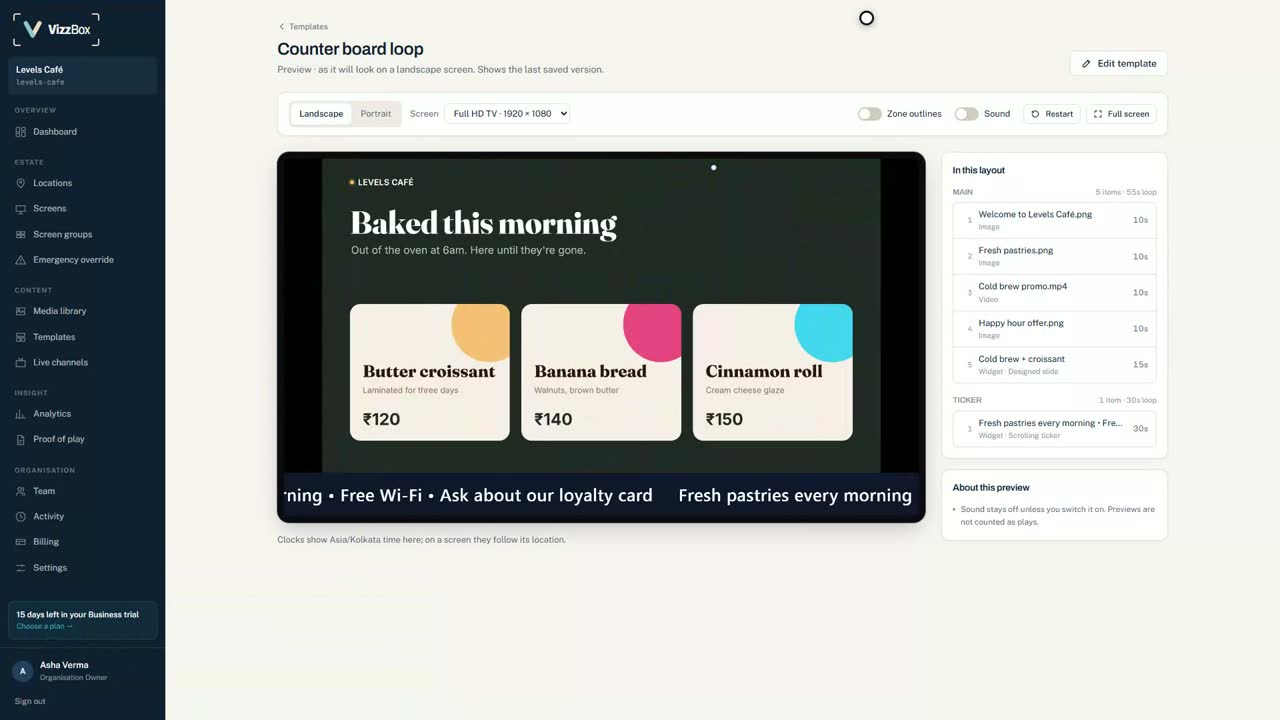
Open Preview to watch the template exactly as a screen will play it, before it goes live.
 07
07Put it on the screen
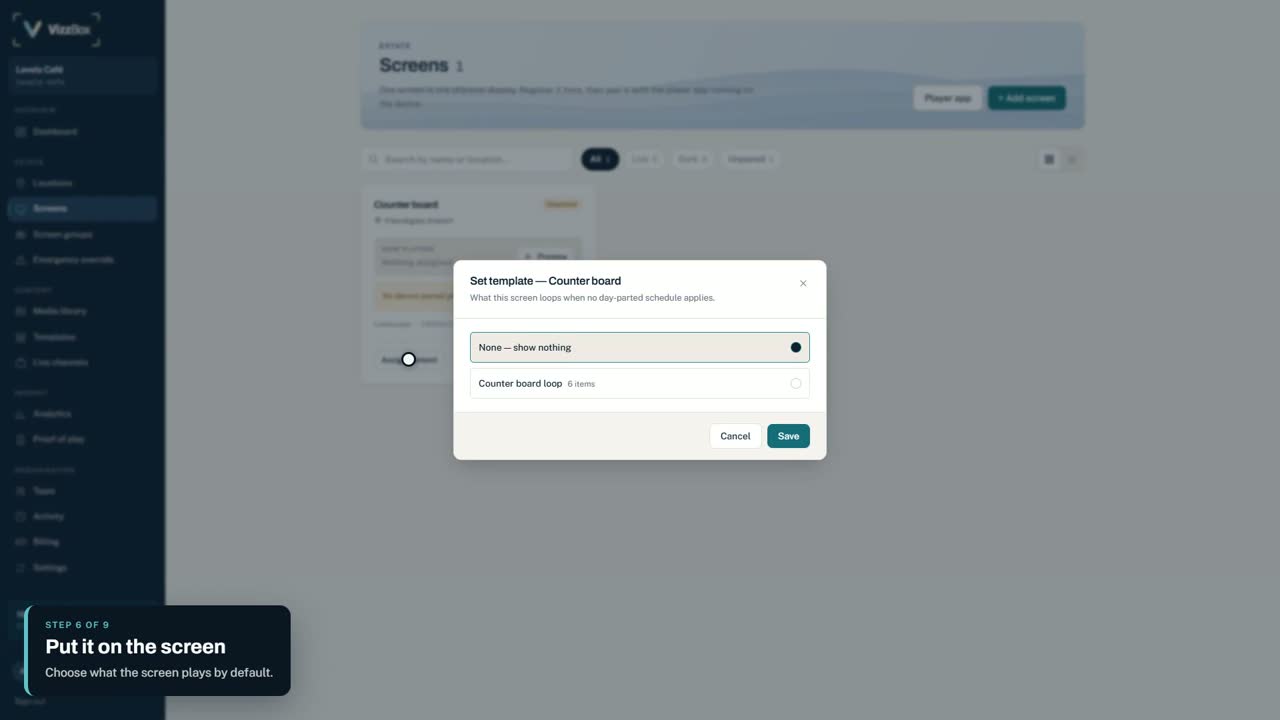
Back in Screens, choose Assign content on your screen and pick the template. That is what the screen plays by default.
 08
08Schedule by time of day
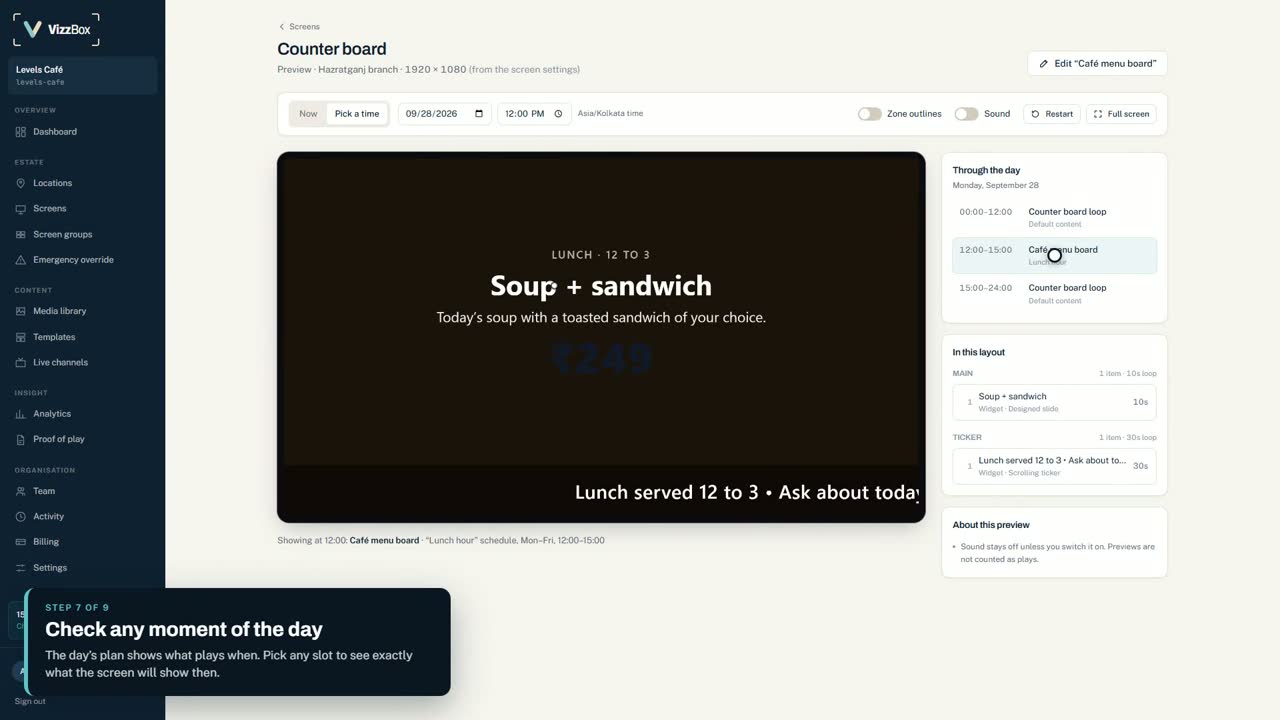
For different content at different times, open the screen’s Schedules and add a rule: pick a template, the days, and a start and end time, or dates for a promotion. In the video, a ready-made design is reworded for lunch and set for weekdays, 12:00 to 15:00.
The screen’s preview shows the day’s plan. Pick any time on it to see exactly what will be showing then.
 09
09Pair the screen
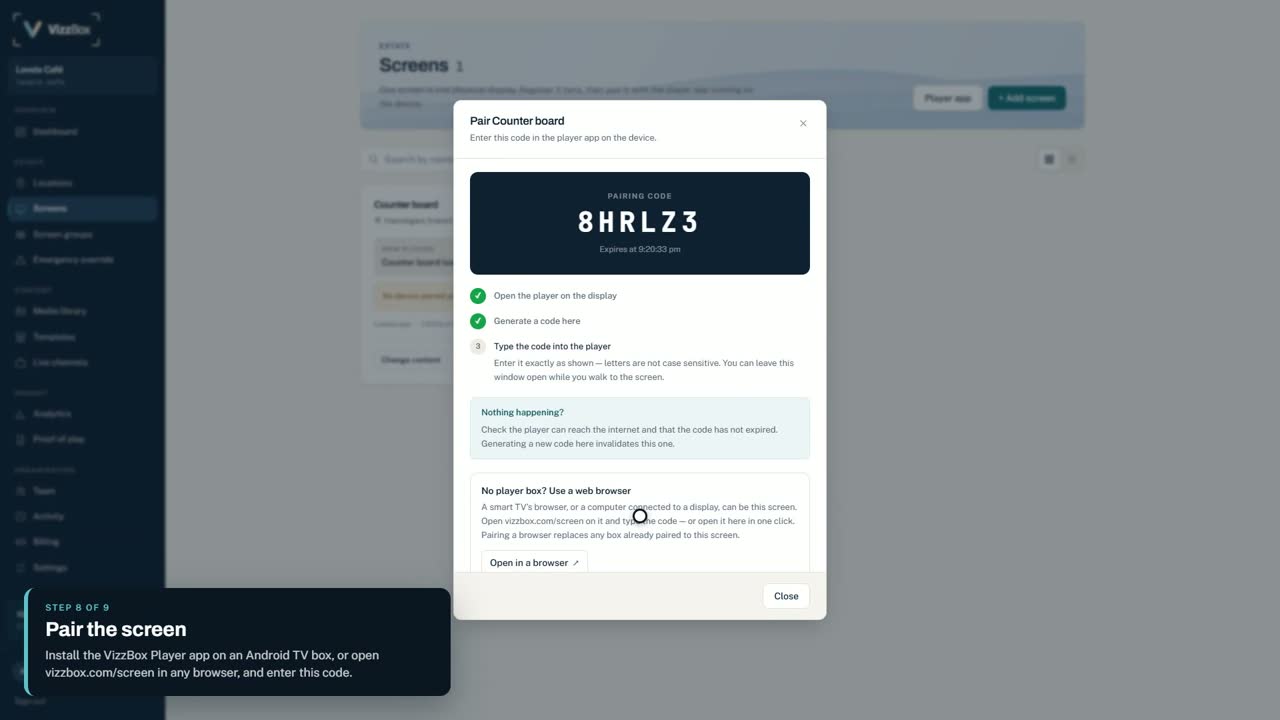
On the screen’s card in the portal, choose Pair device and then Generate pairing code. On the display, open the VizzBox Player app on an Android TV box, or vizzbox.com/screen in any web browser, and type the code.
A code works once and lasts ten minutes. After pairing, nobody needs to touch the screen again.
 10
10It plays
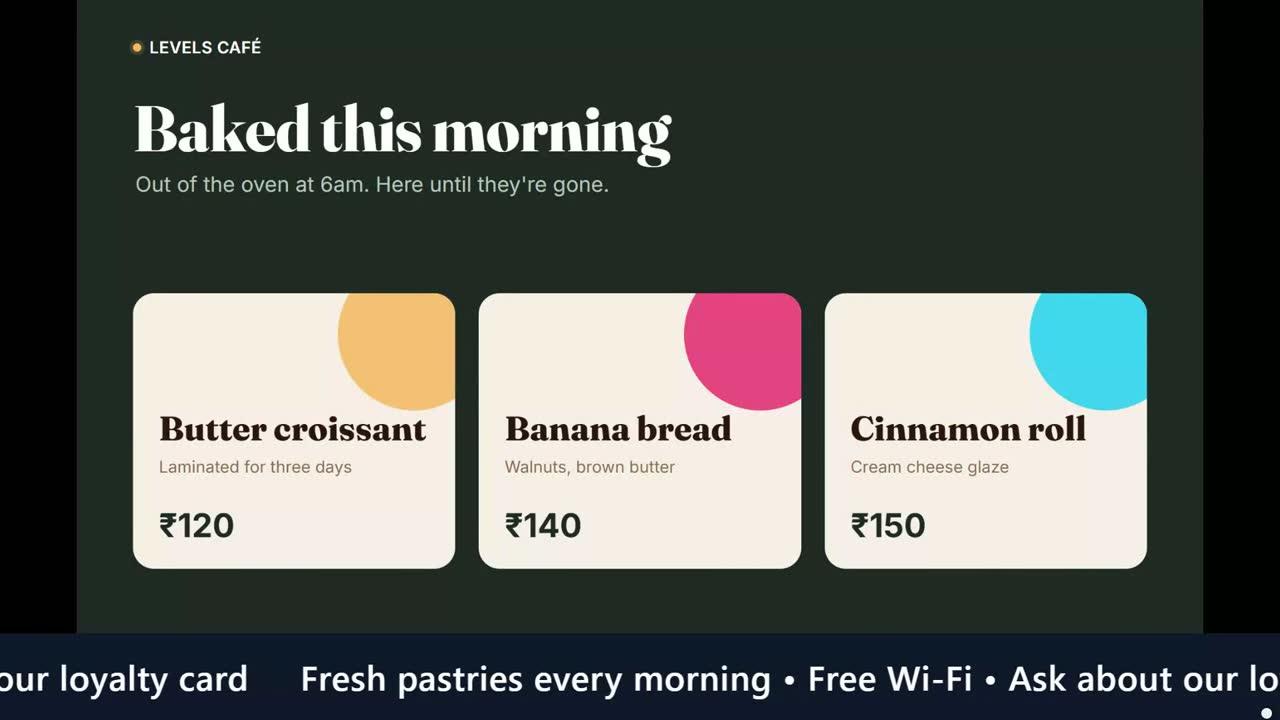
The screen downloads its content and starts playing: the photos move, the video plays and the ticker crawls along the bottom. Whenever you change something in the portal, the screen picks it up within a minute.
 11
11Watch every screen from one place
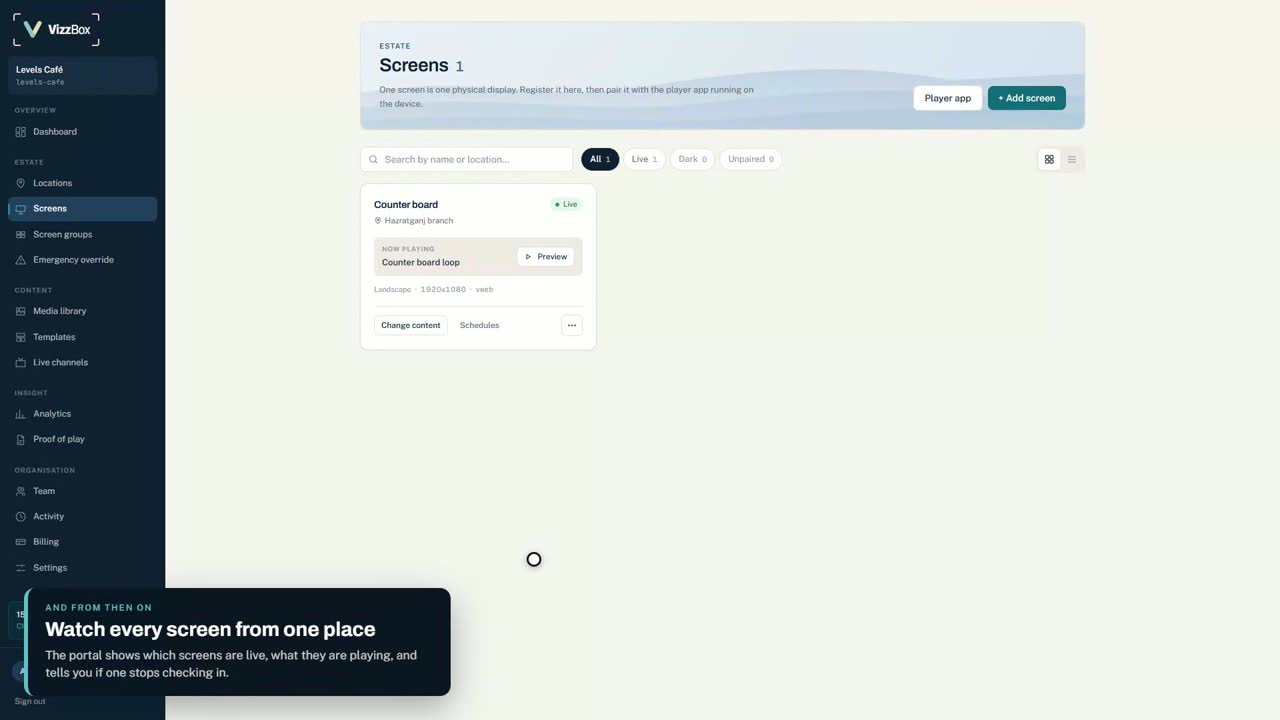
Screens shows which screens are live and what each one is playing, and tells you when one stops checking in.
Questions people ask
- Does it keep playing if the internet drops?
- Yes. Screens keep a copy of their pictures and videos and carry on with the last schedule they had. Web pages and live streams need the connection and are skipped until it returns.
- What do I need for each screen?
- Any display with an Android TV box running the free VizzBox Player app (Android 7 or later), or any computer or smart TV with a web browser, at vizzbox.com/screen.
- How quickly do changes reach the screens?
- Within a minute. Screens check in regularly and pick up a new template, schedule or slide on their own.
- Can each branch show something different?
- Yes. Every screen has its own content and schedule, and each location runs on its own timezone.
- Can I see what actually played?
- Yes. Proof of play and analytics are in the portal.
- What about urgent notices?
- Emergency override puts one message on every screen, on chosen locations or on chosen screens at once, until you clear it.
- Which languages does it work in?
- The portal and the screens work in English, Hindi, Bengali, Spanish, Urdu and Arabic, including right-to-left.
- How do I start?
- Create an account at vizzbox.com. Every account starts with 15 days free on up to 3 screens, with no card needed.
Ready to try it on your own screen?
15 days free on up to 3 screens. No card needed.